
Google Meet AI notetaker flagged as a risk? What changed
By the Cohearo founders ·
If your AI notetaker is stuck outside a Google Meet call, the likely cause is Meet's safeguarded guest admit flow. Meet now puts some join requests in a second queue where the default action is to deny entry. Vendors report that notetaker bots land in that queue, so a host has to admit the bot by hand, or use a way of getting a transcript that doesn't need a bot in the call.
What changed (checked November 6, 2026)
- March 24, 2026: the admit flow began rolling out to Rapid Release domains, up to 15 days for visibility.
- April 7, 2026: it began rolling out to Scheduled Release domains.
- Who gets it: all Workspace customers, Workspace Individual subscribers and personal Google accounts.
- Admin setting: none. Google says there is no admin control for this feature.
- Host control: hosts and co-hosts can still admit someone from the second queue.
What "With potential risks" means in Google Meet
Google's announcement doesn't mention bots. It says hosts now see two queues, and the second shows requests "where the host is more likely to need a closer look." Google doesn't publish what puts a request there.
The bot part comes from the notetaker vendors. Avoma's help page shows its assistant listed under "With potential risks" and labeled "Appears to be a bot," and says Google applies the flag to any non-Google notetaker. Hosts can still admit a bot, and the label doesn't say a particular tool is unsafe.
How to admit an AI notetaker in Google Meet
If you are the host and you want the bot in the call:
- Open the People panel in Meet.
- Scroll to With potential risks.
- Find the bot, and open the three-dot menu next to its name.
- Select Admit entry.
Someone has to do this for each meeting, and it has to be a host or co-host. If you're a guest whose bot is waiting, you depend on the host noticing it and choosing to override the default. In a client call, that host may not know your bot is waiting.
Your Google Meet AI notetaker options
| Option | Who has to act | What to check first |
|---|---|---|
| Admit the bot | A host or co-host, each meeting | Does the host want a third-party bot in the call? |
| Google's "Take notes for me" | A host, if Host Management is on | It needs an eligible Workspace edition or Google AI plan, and handles one language per meeting |
| Capture on your own computer | You | You still have to tell people you are transcribing |
| Ask the host for their notes or recording | The host | Whether they have them, and whether they will share them |
Google's built-in notes are the simplest choice if your whole team is on an eligible plan and each meeting uses one language. They are less useful when you're a guest in someone else's call.
How on-device capture works
An on-device transcription app doesn't join the meeting. It runs on your computer and captures what you already hear: system audio for the other people, and your microphone for you. There is no participant to admit, so the admit flow doesn't apply to it.
This is how Cohearo works. On the desktop it transcribes in real time on your device and labels who said what, in Meet, Teams, Zoom or an in-person meeting. Your audio is never uploaded. In Cloud mode the transcript syncs to your account, and the audio stays on your device.
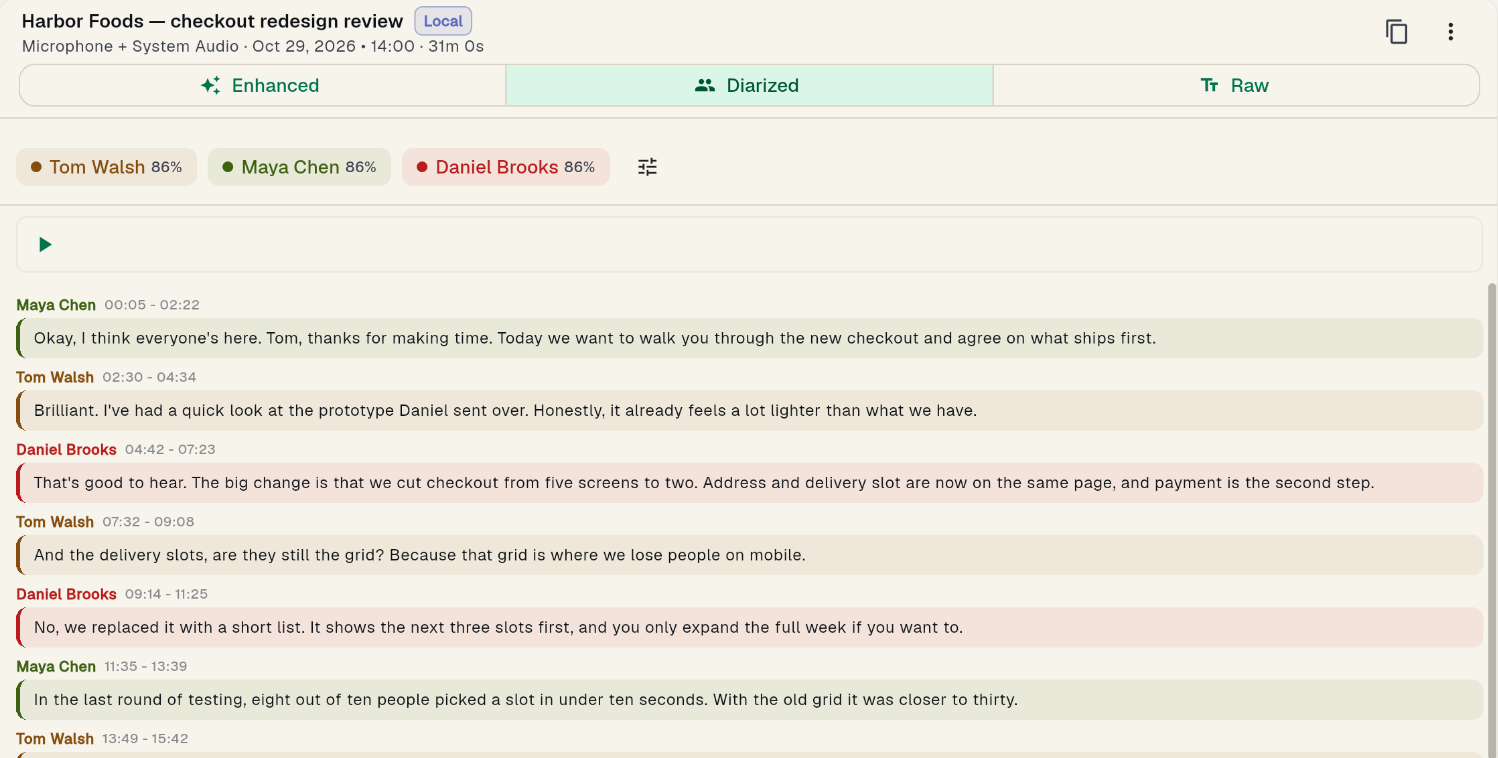
There are trade-offs. It only runs on the device where you installed it, and the transcript depends on the audio your computer captures.
You still need consent without a bot
You have the same obligations without a bot in the call. Recording and transcription rules apply to capturing the conversation wherever the processing runs, and they vary by country and state. Some places require everyone's consent.
Tell people you're transcribing, follow your company's policy and your client's, and get legal advice if you're unsure. Don't use any tool as a way to avoid telling people.
Teams has a similar change
UC Today reports that Microsoft's notice MC1251206, from March 13, 2026, says Teams will detect external third-party meeting bots and label them "Unverified," and that admins can set a policy to block them. If your team uses both platforms, expect to admit bots on each.
Which option to pick
- If you host your own meetings and your team accepts bots, admit the bot.
- If your whole team is on an eligible Google plan, try "Take notes for me."
- If you're often a guest in client calls, or work across Meet, Teams and Zoom, on-device capture means you don't depend on the host. You still have to tell people you're using it.
More on meetings
Can ChatGPT record meetings on Windows or Linux?
ChatGPT's Meetings plugin takes meeting notes on a Mac. Here is what it does with your audio, and how to record meetings on Windows or Linux today.
How to record and transcribe an in-person meeting
AI note takers that join calls can't help in a room. Here is how to record and transcribe an in-person meeting, with speakers labeled.