
Cohearo / Webhooks
Webhooks
With Cohearo Professional, send transcripts to your own tools and workflows as soon as processing finishes.
Webhooks also work in local mode, but require an active Professional subscription. Transcription runs on your device; delivering the webhook requires a connection to your chosen endpoint.
How it works
A webhook is an HTTP request triggered by an event. In this example, the Cohearo app sends a POST request containing transcript data when processing finishes. The configuration applies to this installation of the app.
1. Get a webhook URL
This guide uses Webhook.site only as an example for testing and development. It lets you inspect incoming requests without building a server. You do not need Webhook.site to connect Cohearo to your tools.
For a real integration, use the incoming webhook URL of an automation workflow or your own server—for example, a workflow that posts the transcript to a Microsoft Teams channel, creates a task, or saves notes. The endpoint needs to accept Cohearo’s JSON payload; your workflow can transform it into the format required by the destination tool.
To follow this example, open Webhook.site, copy Your unique URL, and keep the page open to see the request arrive.
Use a non-sensitive sample recording: its content will be sent to Webhook.site, a third-party service. If your preset captures clipboard content, use sample text there too. Keep your inspection URL private.
2. Configure Cohearo
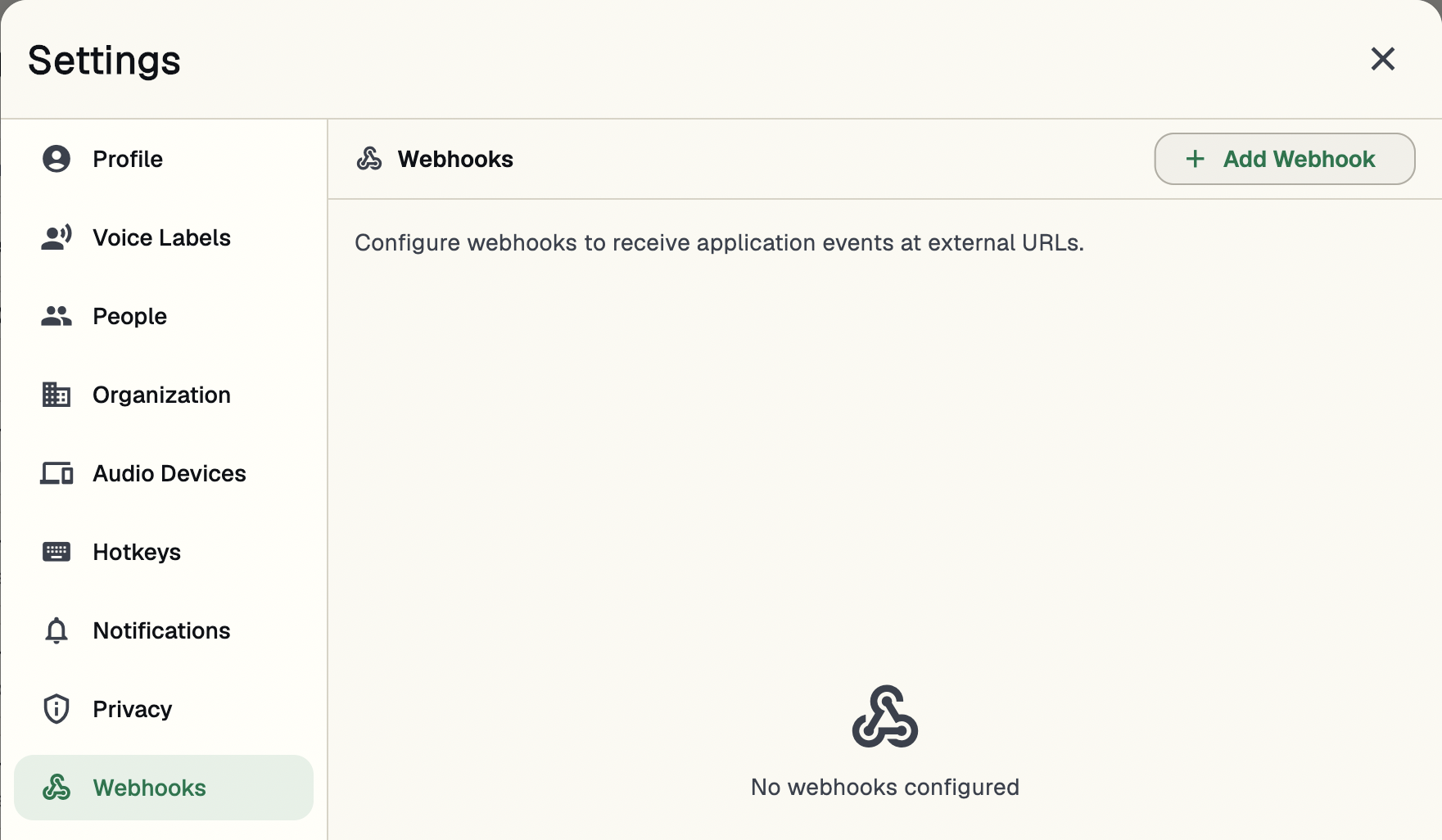
Open Settings → Webhooks and click Add Webhook.
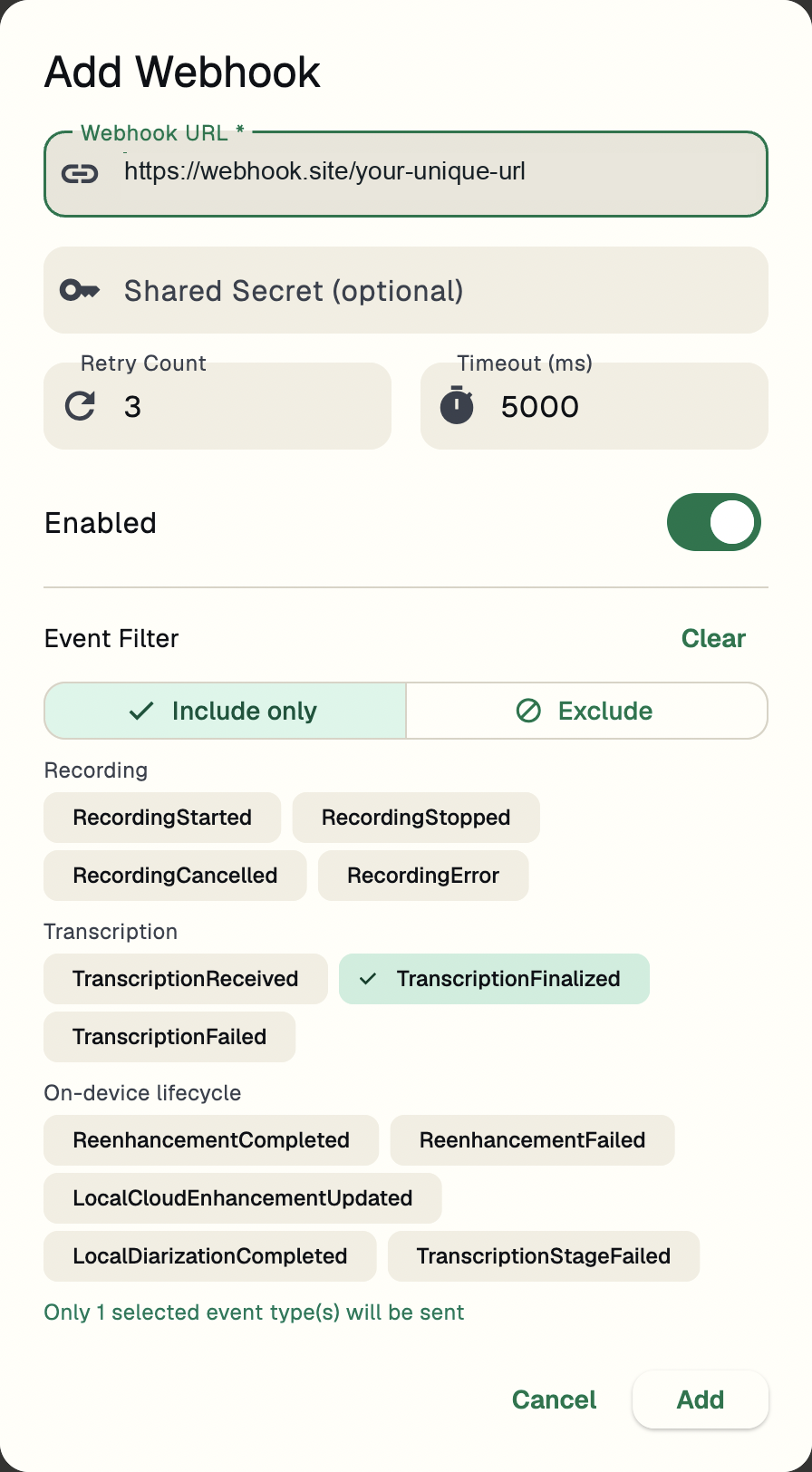
- Paste your Webhook.site URL into Webhook URL.
- Leave Shared Secret blank for this delivery test. This optional field lets you sign requests for a server that verifies signatures.
- Keep the default Retry Count and Timeout (ms) values, and leave Enabled on.
- Under Event Filter, choose Include only and select only TranscriptionFinalized.
- Click Add to save.
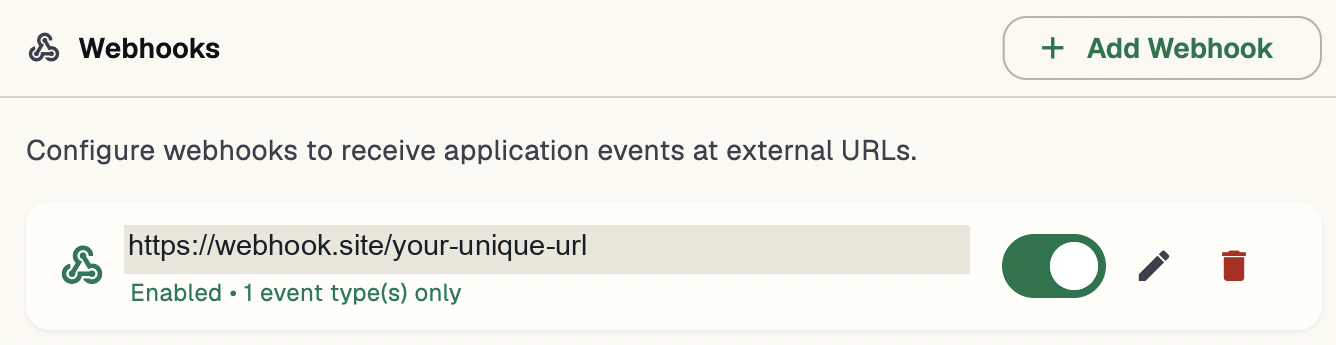
Your webhook will appear in the list with the status Enabled · 1 event type(s) only.
3. Make a recording
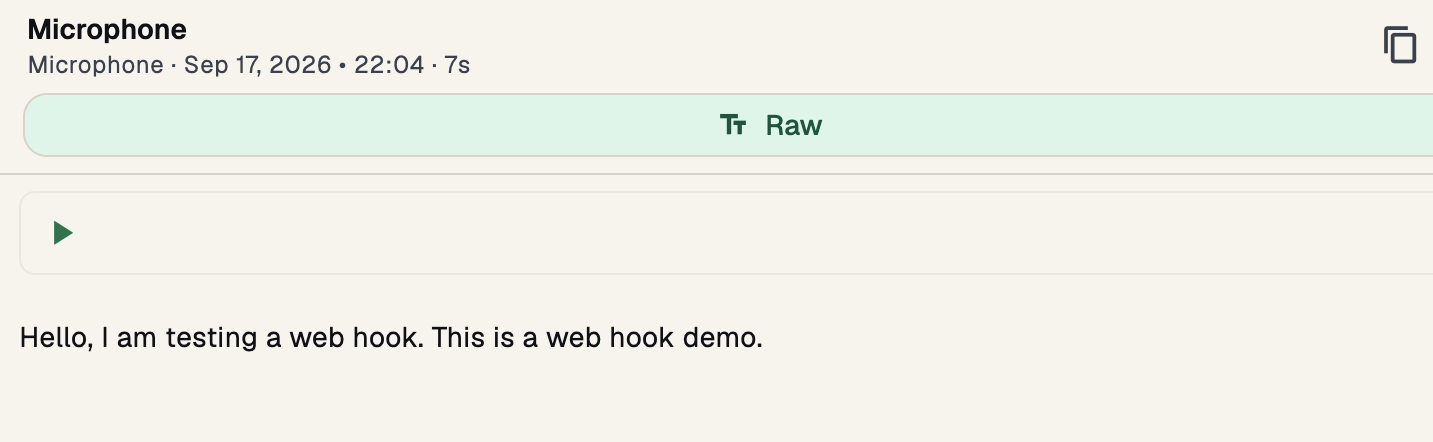
Close settings and record a short sample. Stop recording and wait for processing to finish. Cohearo will send the webhook automatically.
Hello, I am testing a web hook. This is a web hook demo.
4. Inspect the request
Return to Webhook.site and select the incoming POST request. Under Request Content, inspect the JSON and find your text in data.transcription.
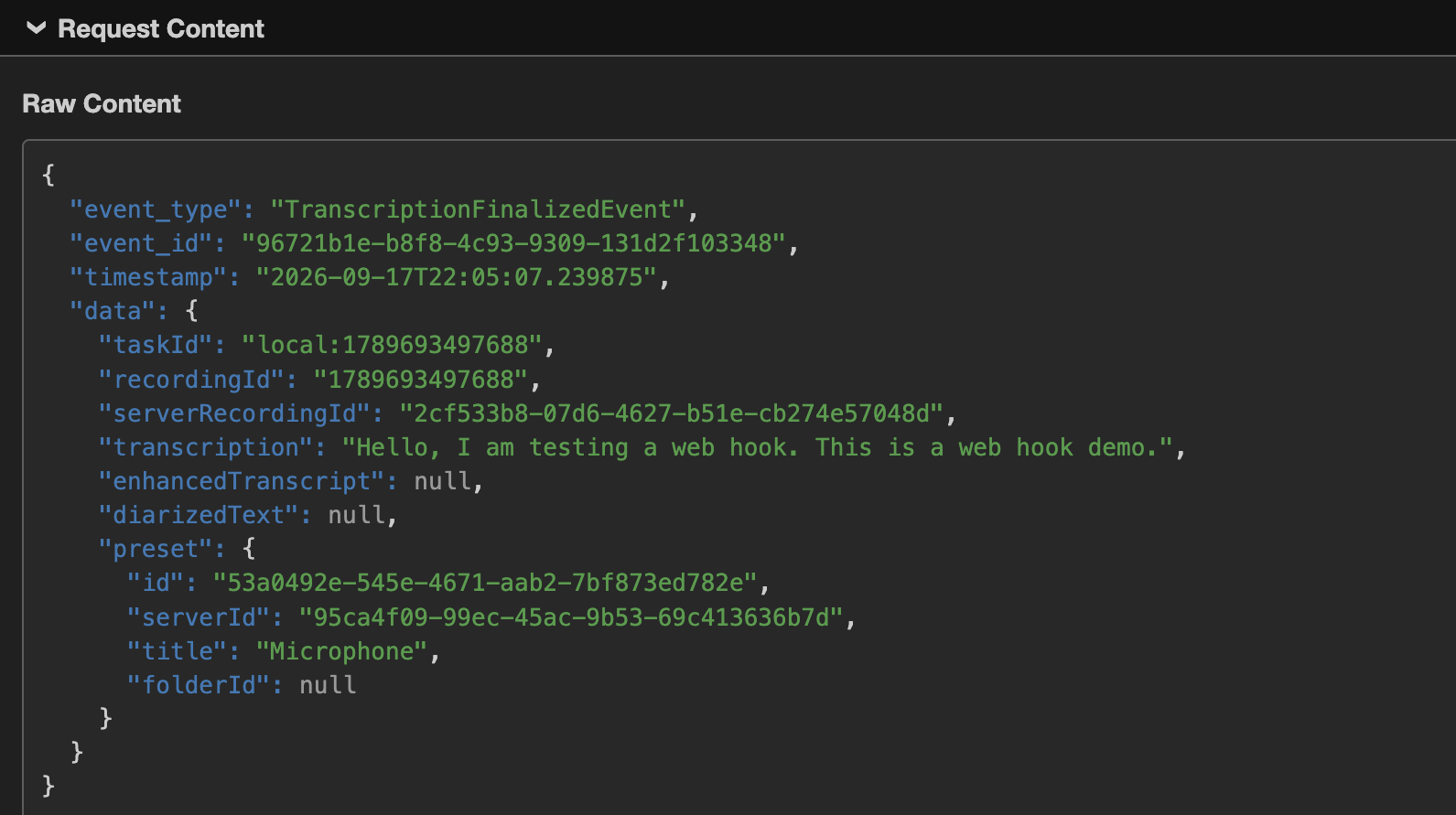
The filter label is TranscriptionFinalized; in JSON, it appears as TranscriptionFinalizedEvent. Here is the example payload with identifiers replaced.
{
  "event_type": "TranscriptionFinalizedEvent",
  "event_id": "example-event-id",
  "timestamp": "2026-09-17T22:05:07.239875",
  "data": {
    "taskId": "local:example-recording-id",
    "recordingId": "example-recording-id",
    "serverRecordingId": "example-transcript-id",
    "transcription": "Hello, I am testing a web hook. This is a web hook demo.",
    "enhancedTranscript": null,
    "diarizedText": null,
    "preset": {
      "id": "example-preset-id",
      "serverId": "example-preset-server-id",
      "title": "Microphone",
      "folderId": null
    }
  }
}
In this example, enhancedTranscript and diarizedText are null because those results are not present in the payload. Available fields depend on the recording’s processing and context.
If the request does not arrive
- Check that you copied the complete URL and enabled the webhook.
- Check that TranscriptionFinalized is selected under Include only.
- Wait for processing to finish: stopping recording and finalizing a transcript are different events.
- Keep the app open and check that your device can reach Webhook.site.
What will you build?
You’ve received your first test transcript. Now replace the Webhook.site URL with your automation workflow or server endpoint to put that data to work in your tools. If you’re not continuing, disable or delete the test webhook.
Here are a few ideas to build with an automation workflow or server that receives Cohearo events:
- Share with your team: post a transcript or summary to a Microsoft Teams channel.
- Create follow-up tasks: process the transcript to identify action items and draft tasks in your project tracker.
- Organize your notes: save transcripts to your notes app, knowledge base, or storage.
- Prepare a recap email: use the transcript to generate a draft you can review before sending.
These are workflow ideas you can build, rather than ready-made integrations. We’ll publish more concrete examples with step-by-step instructions for connecting Cohearo to other tools.