
Cohearo / MCP
Connect Cohearo to Claude
Add a custom connector, authorize Cohearo access, and work with your conversations in Claude.
Before you start
- A Claude account. Custom connectors are available on Free, Pro, Max, Team, and Enterprise; Free allows one custom connector.
- A Cohearo account with recordings or folders to look up.
- On Team or Enterprise, an organization owner must add the connector before each person authorizes their own account.
You do not need an API key or API credits. These screenshots show setup on Claude.ai with a Max subscription. Check Claude’s current requirements.
1. Add a custom connector
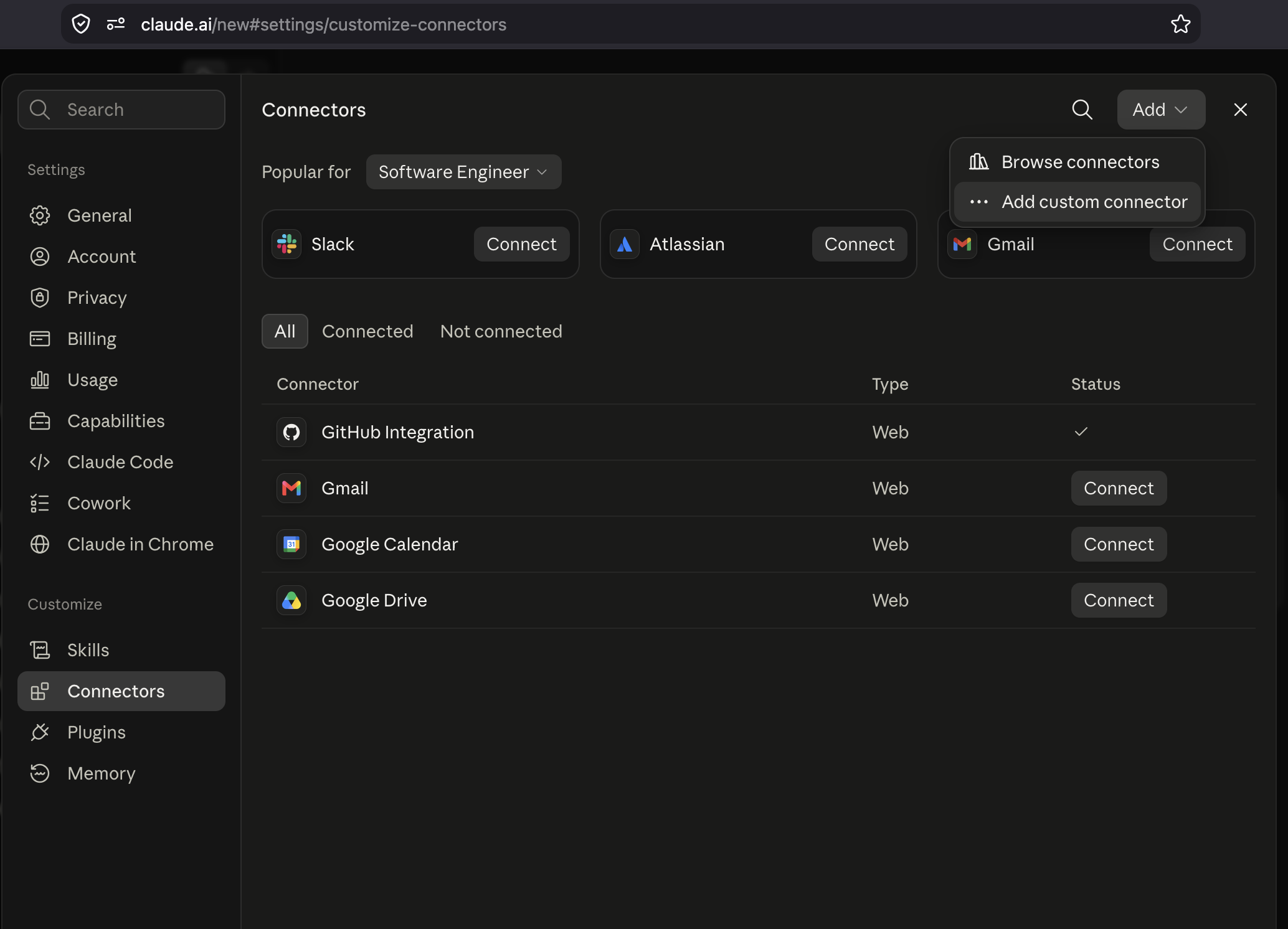
In Claude.ai, open Settings → Connectors. Click Add → Add custom connector.
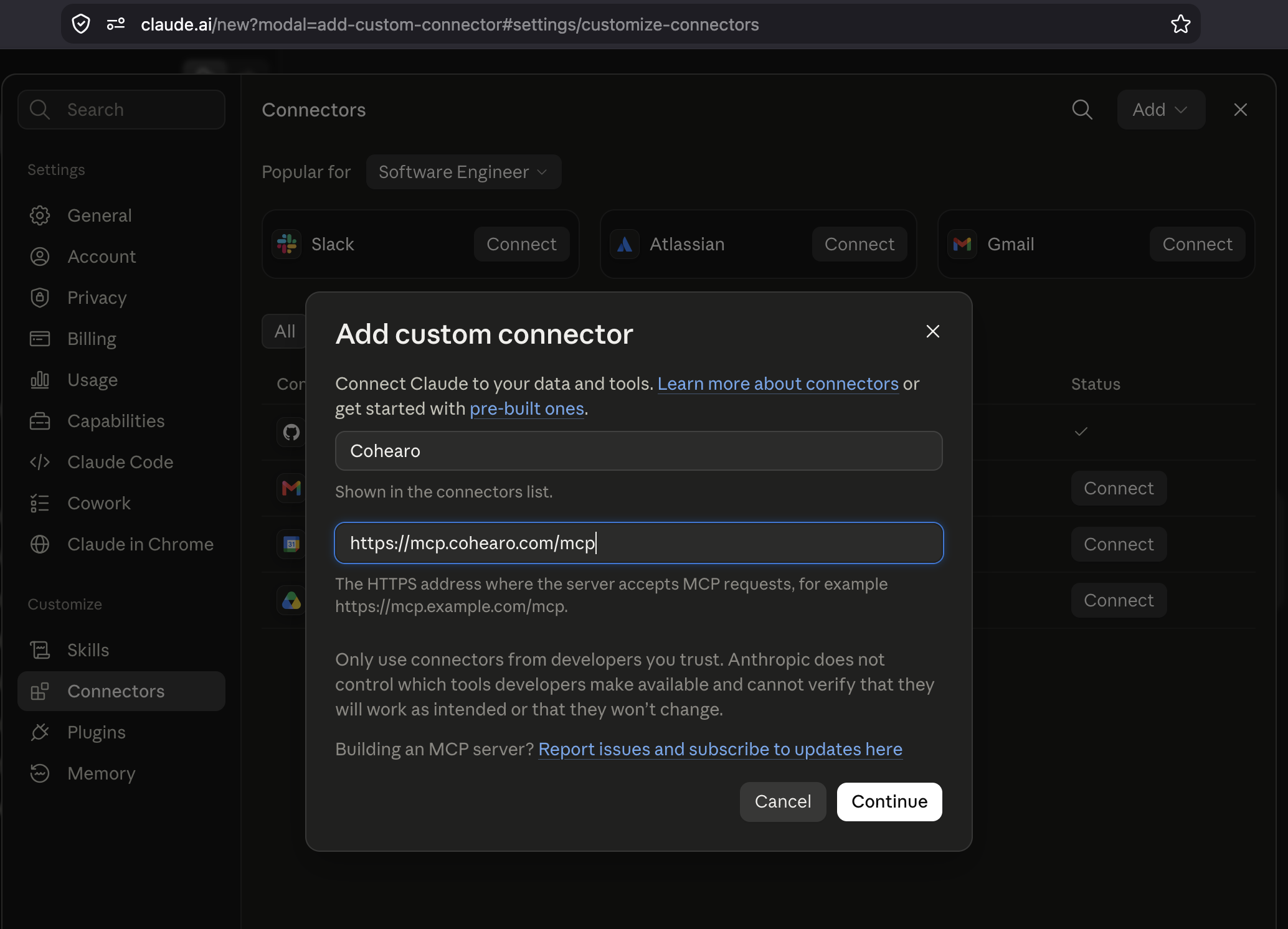
Fill in both fields and click Continue:
- Name
- Cohearo
- Server URL
https://mcp.cohearo.com/mcp
2. Keep the detected settings
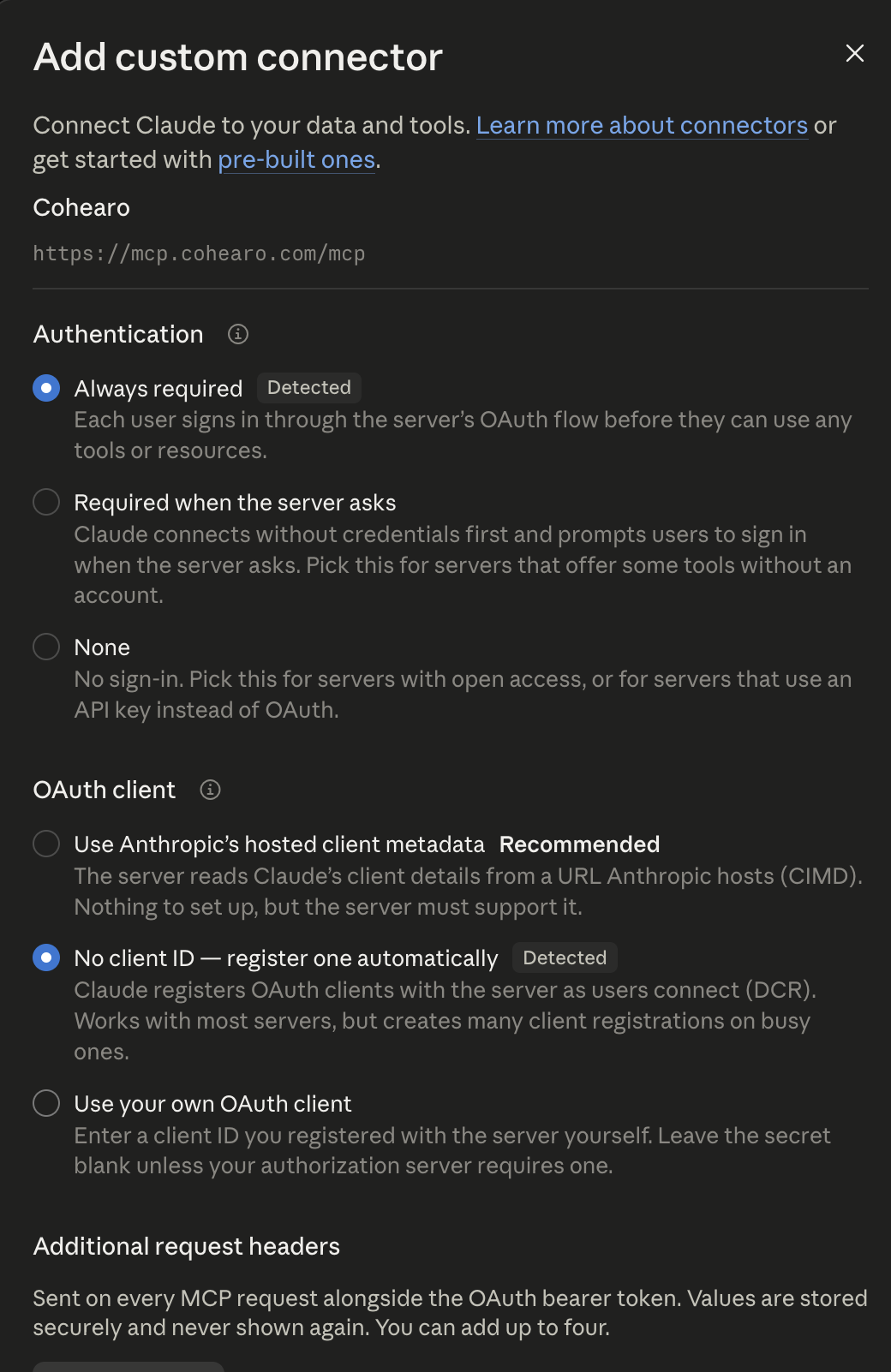
Claude detects Cohearo’s OAuth configuration. Keep these options:
- Authentication: Always required.
- OAuth client: No client ID — register one automatically.
- Additional request headers: leave blank.
- Advanced → Transport: Streamable HTTP.
You do not need to register an OAuth client manually. Click Add to save.
3. Authorize Cohearo access
If Claude shows Connect, click it. Sign into your Cohearo account in the authorization window, review the permissions, and click Allow. Then return to Claude.
Cohearo will appear connected in the connectors list. Open its details to review permissions for individual tools.
4. Try your first request
Open a new conversation. In the + → Connectors menu, check that Cohearo is enabled. Send:
Use Cohearo to list my folders. Do not modify any data.
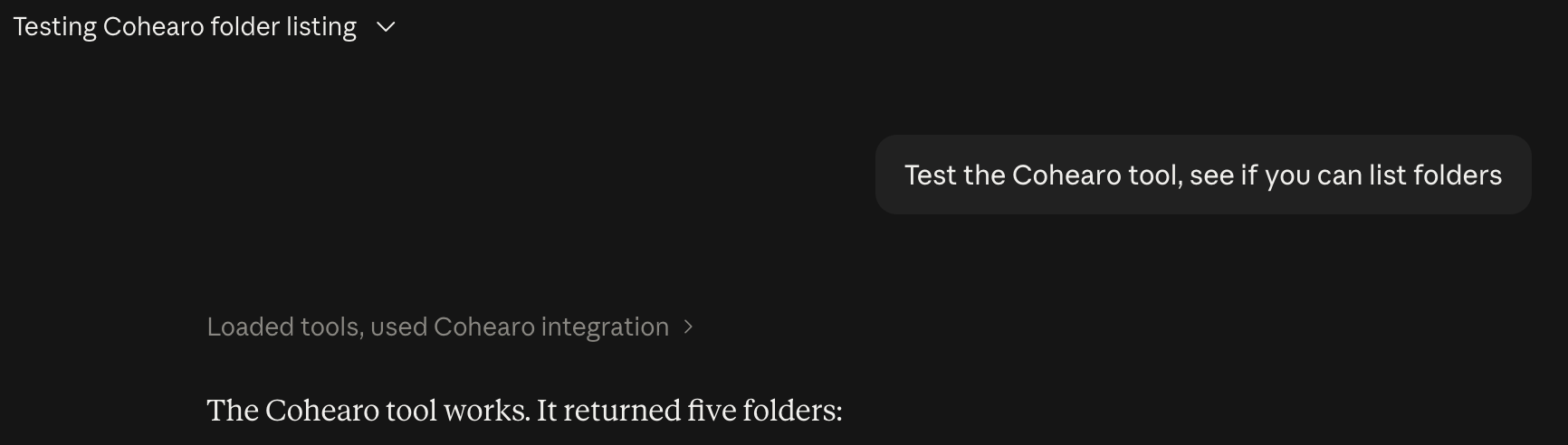
Approve the tool call if Claude asks. In the example below, Claude used the integration and returned a folder list. Results depend on your account.
Next, you can search for a conversation by topic:
Find a meeting about [topic] in Cohearo and summarize the decisions from its transcript.
If something does not work
If the option to add a connector is missing, check your plan limit and organization permissions. If authorization fails, check the URL and reconnect. If Claude does not use Cohearo in the conversation, enable the connector in the + menu and explicitly ask it to use Cohearo.
Access and disconnecting
Cohearo’s connection can read your recordings and recordings available through shared folders. It also includes editing tools for your own recordings, such as changing titles and labels. Review the permissions when you connect; OAuth grants more than read-only access.
To disconnect, open the Cohearo dashboard → Settings → Connections and select Disconnect. Also remove or disable Cohearo in your AI client. Disconnecting prevents token renewal; an existing access token can remain valid for up to one hour.